
OTJ: How to access an apprentices OTJ dashboard and give entries a status
How to access an apprentices OTJ dashboard and give entries a status
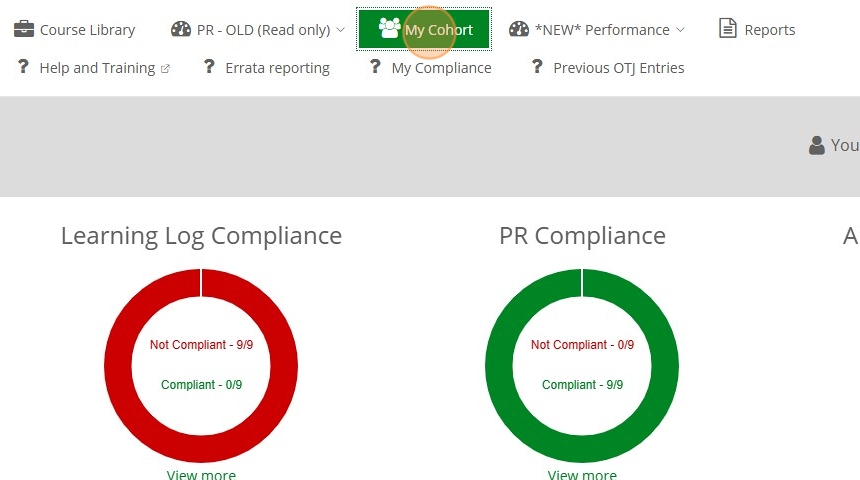
1. Click 'My Cohort' on the top menu bar.
2. Click the "User's Fullname value" field.
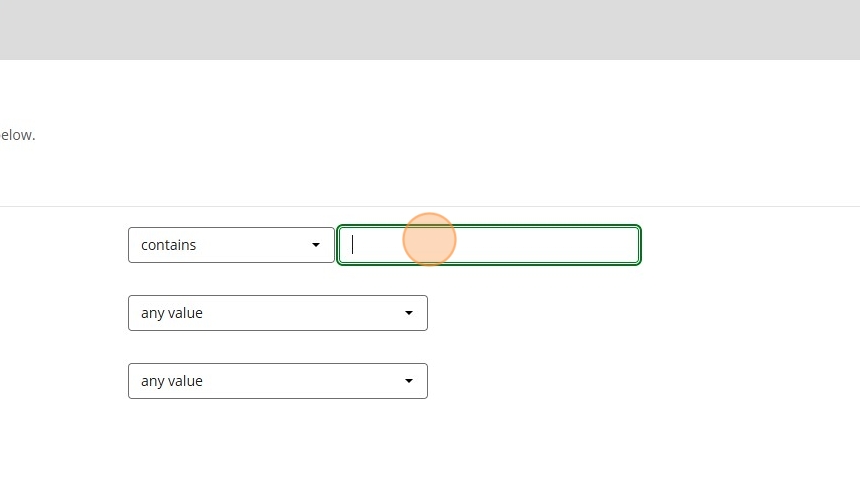
3. Enter the users name.
4. Click 'search.

5. Click one of the OTJ icons to navigate to the coach view of the users OTJ dashboard.

6. Total hours required will show you how many OTJ hours the apprentice is meant to log during their apprenticeship.
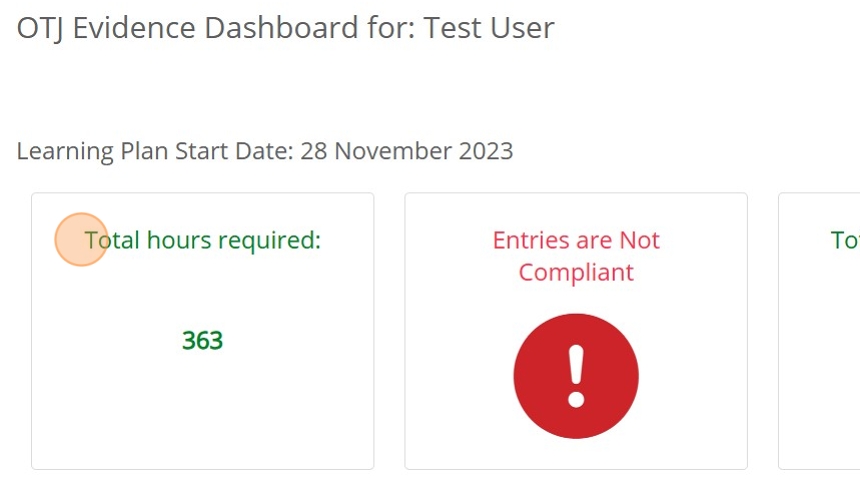
7. The highlighted box below details if the apprentice is compliant with their OTJ logs
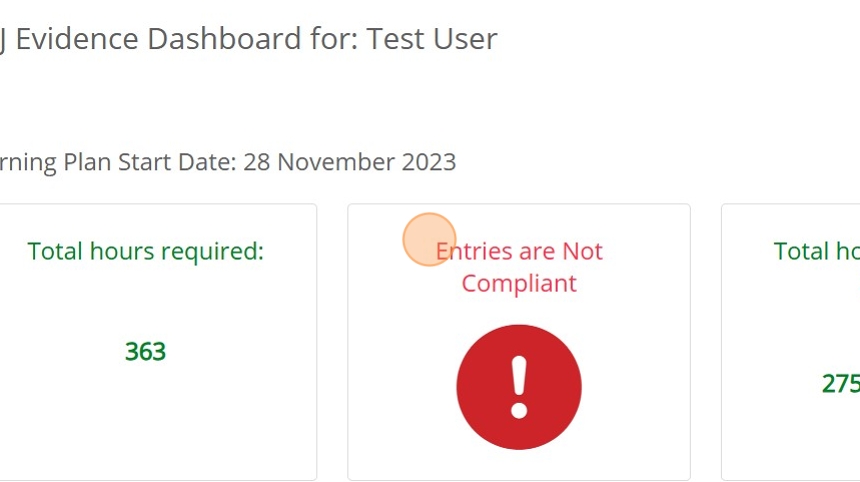
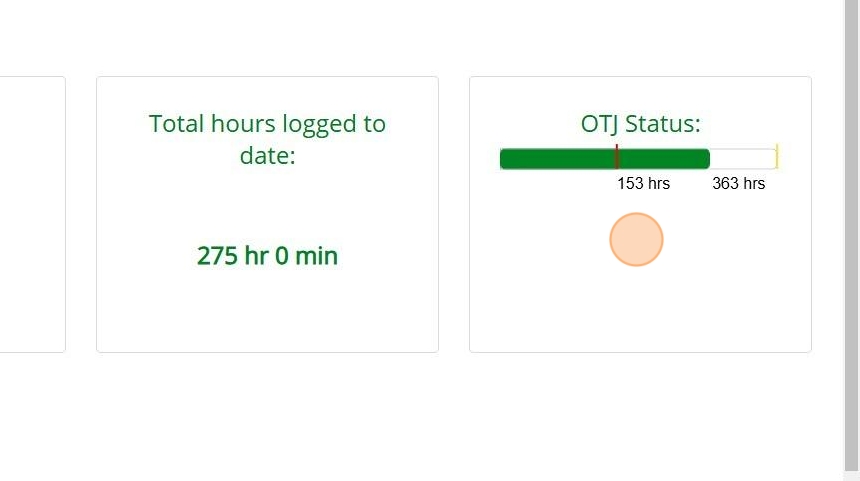
8. Total hours logged to date shows how many hours logged by the apprentice have been approved

9. OTJ Status shows a visual indicator of how many hours have been approved compared to the total requirement. The red line indicates the amount of expected hours the apprentice would have been expected to log at this time.
10. To see all records the apprentice has submitted click on the 'All' radio button, for only unapproved select 'Draft' etc.
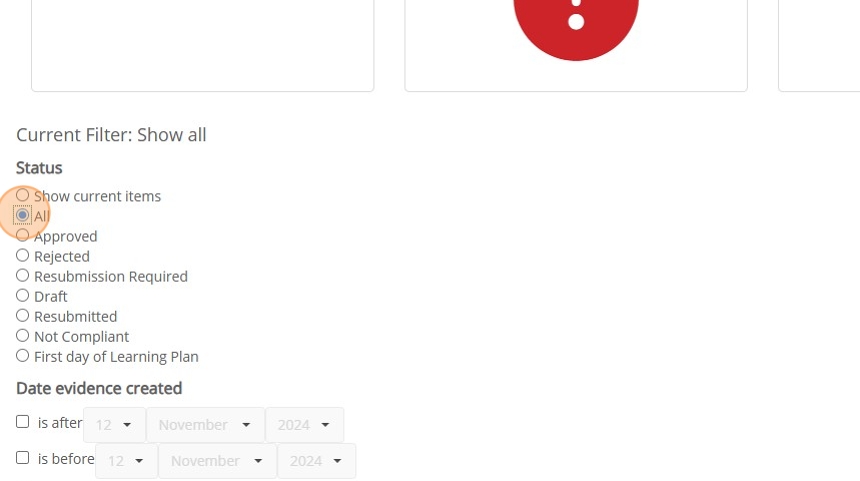
11. Click "Apply filter" to show you chosen selection

12. In the "Coach Status" column you can click on the drop down menu against an entry and give the entry a status of "Approved", "Rejected" or "Resubmission required"
